



After accomplishment based on https://blog.i234.me/remote-computing-freedom-building-a-secure-ssh-tunnel-via-nas-jump-host/, we completed the SSH flow as following, it makes us being able to use VS code SSH remote function to connect to AI tower remotely.
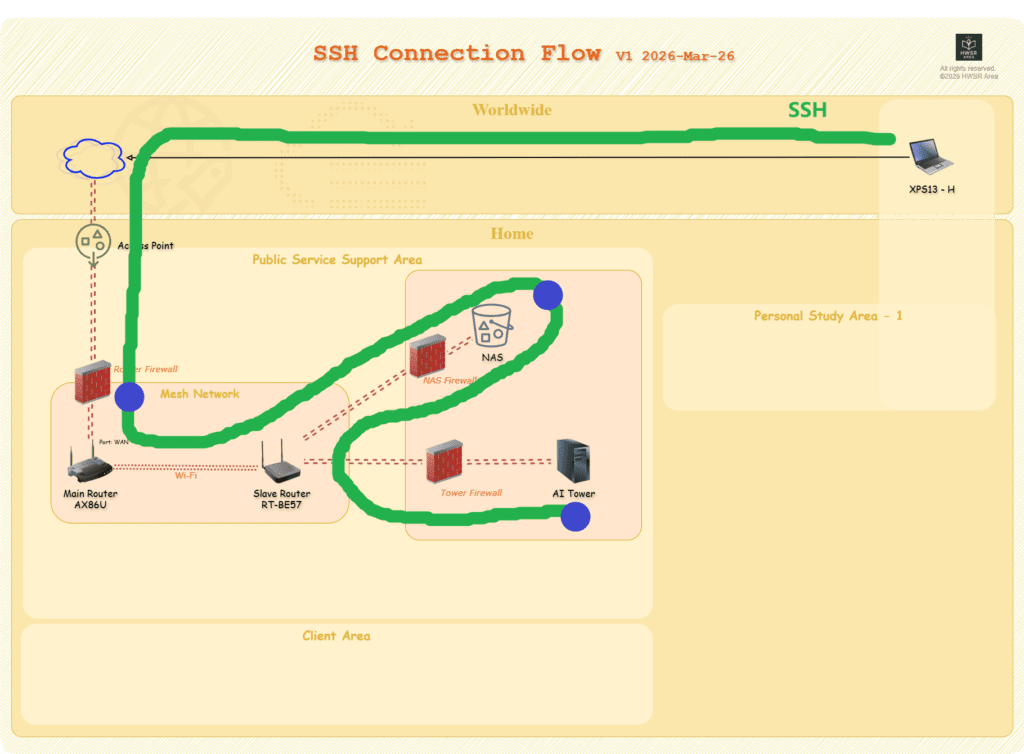
But I still met the issue that I can not access to NAS via SMB using this SSH method. Today I fixed this. This article is to show how I overcome this issue.
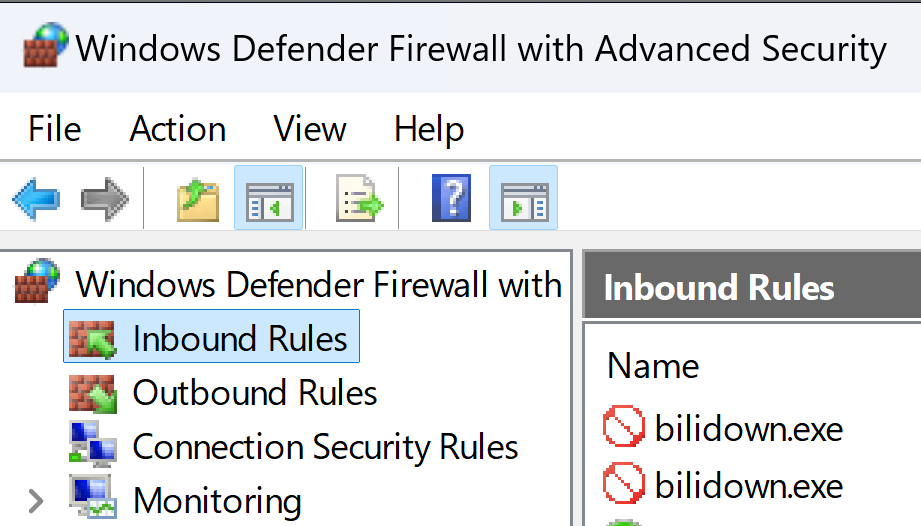
Step 1, to allow SMB in “InBound Rules” of firewall of AI tower,:
Step 2, to mount NAS folders with Powershell configuration file(Profile) located in AI tower:
In Ai tower, execute:
#Check or create new profile.
if (!(Test-Path $PROFILE)) { New-Item -Path $PROFILE -Type File -Force }
#open profile with notepad
notepad $PROFILE
With Notepad, add:
# Check if Z disk is mounted
if (!(Test-Path "Z:")) {
    Write-Host "Detecting AI Data Drive... Connecting to NAS..." -ForegroundColor Cyan
    #mound Z disk
    net use Z: [NAS IP, 192.168.x.x]\ai  /user:[AI_User] /persistent:yes
}
I added following three folders in this notepad, so that these three can be mounted automatically once ssh connection establishment.
Note: give this AI_User limited access, for example, No write access to important folders at all.

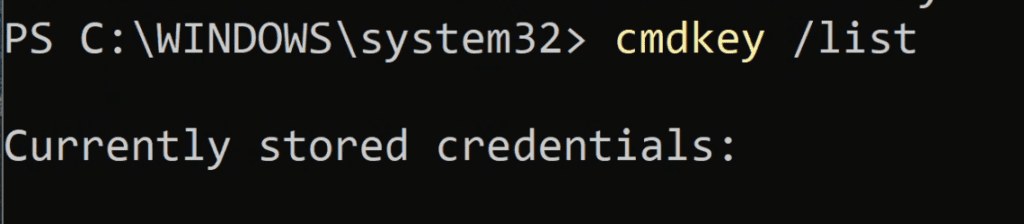
Double check if essential credentials have already added in AI tower, using following command, expectation is that there is/are AI_user name(defined in NAS) and corresponding correct NAS SMB address in ths list, if so, means we don’t need to write plaintext passcode in above profile file, which can guarantee the safety to some extent.
Step 3 , to verify if Z disk can be accessed from SSH via AI tower.
SSH to AI tower through NAS, then “ls” to Z/Y/X disk which should be connected to corresponding folders in NAS already, some folders or files list in that disk shoube be printed in the response.
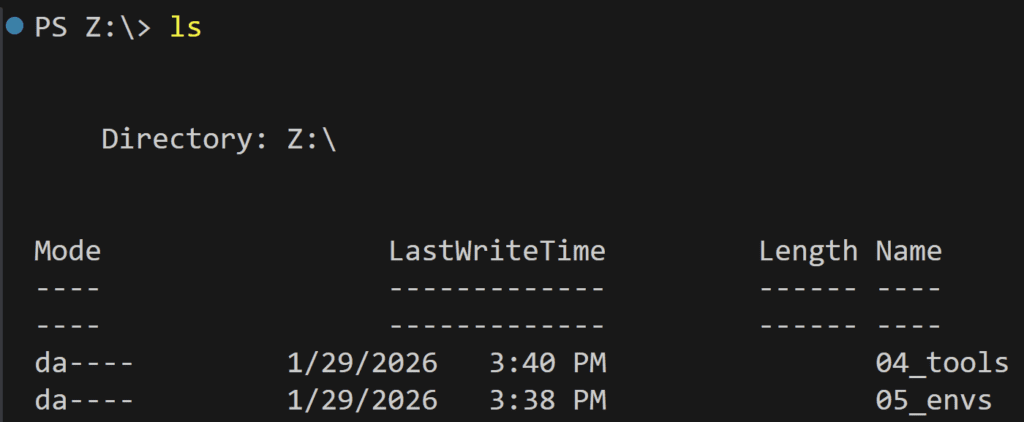
Now everytime ssh connects, disk X.Y.Z are automatically mounted and ready to use.
In this way, either via ssh or directly in local AI Tower, we can use the same code without file path issue.