



In last article <Remote Computing Freedom: Building a Secure SSH Tunnel via NAS Jump Host>, I have already set up a ssh from local to remote(AI tower)
Now I want to make it easier, no need password to be inputted when ssh. Very new here, just follow ChatGPT&Gemini instruction to do, but still toke me 2 hours to fix this.
1- Create the ssh keys in local manchine(my XPS13 – Windows 10) using “ssh-keygen” in cmd window: id_ed25519.pub and id_ed25519 files.

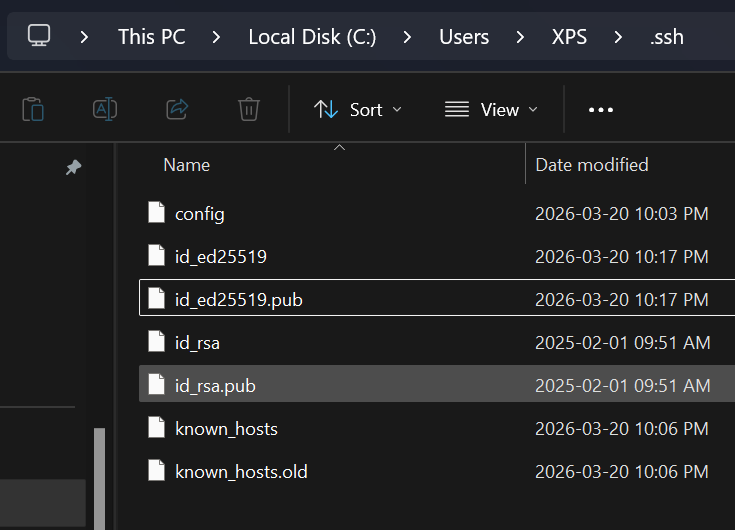
2- Manually copy the ful contents in “id_ed25519.pub” in XPS13 to “C:\Users\[username]\.ssh\authorized_keys” in AI tower.
Note: authorized_keys is a file, which can be created in manual.

3- Fix Strict Permissions (Crucial) in AI tower
Windows OpenSSH ignores authorized_keys if permissions are too broad. Run this on the Target Machine:
PowerShell:

# Reset inheritance and grant only the current user and SYSTEM access
icacls $HOME\.ssh\authorized_keys /inheritance:r
icacls $HOME\.ssh\authorized_keys /grant:r "$($env:USERNAME):R"
icacls $HOME\.ssh\authorized_keys /grant:r "SYSTEM:R"
4- Update SSH Config in AI tower
Edit C:\ProgramData\ssh\sshd_config on the Target Machine. Ensure these lines are active:
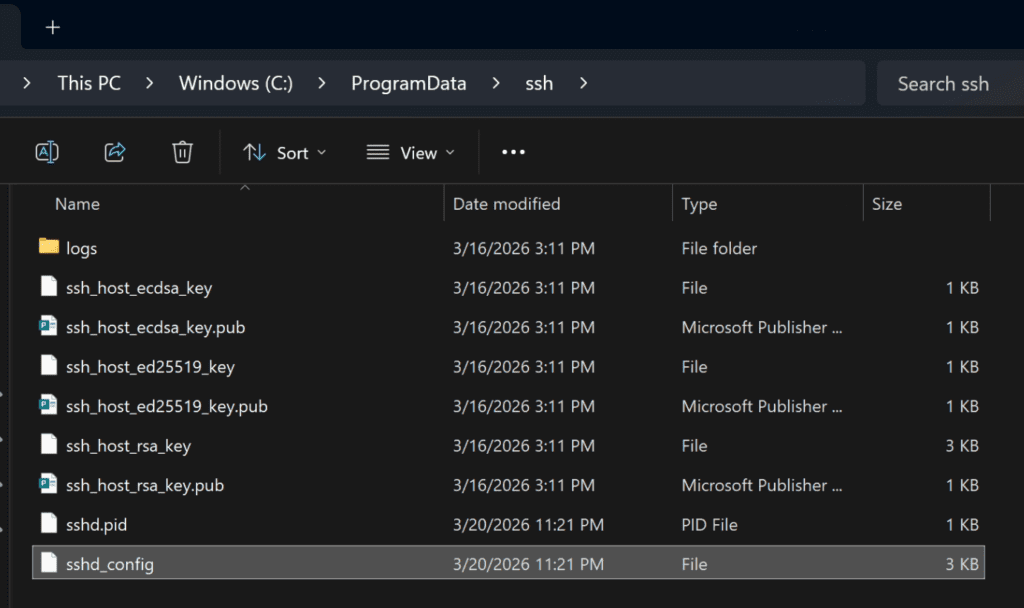
PubkeyAuthentication yes
AuthorizedKeysFile .ssh/authorized_keys
Important: Comment out (add #) these lines at the bottom to prevent Admin-specific overrides:Match Group administrators
AuthorizedKeysFile PROGRAMDATA/ssh/administrators_authorized_keys
5- Restart Service
In Ai tower’s PowerShell:
Restart-Service sshd
6- test in XPS13
In CMD:ssh aitower
should not need to input passcode then being successful.