



Introduction
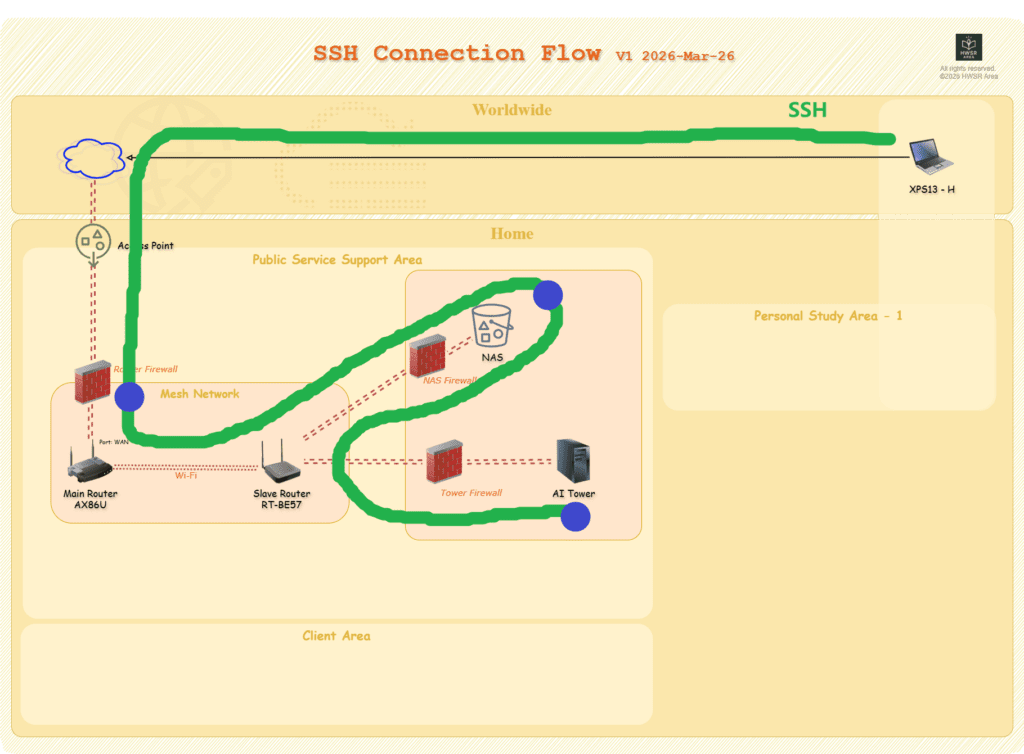
To leverage the massive power of my home RTX 5080 while traveling, I implemented a robust remote access architecture. Instead of relying on third-party VPNs or intrusive software, this solution uses a NAS as a Jump Host. This method keeps the AI Tower invisible to the public internet while providing a high-speed, encrypted “expressway” for my data.
Step 1: Fortifying the Gateway (NAS Configuration)
The NAS acts as the “security guard” for the entire home network.
- Obfuscate the Entry Point: Never use the default SSH port
22. Change it to a high-range custom port (e.g.,54321) in the NAS settings. This instantly mitigates 99% of automated “brute-force” bot attacks. - Enable Traffic Relay: By default, many NAS systems block internal traffic forwarding. You must modify the SSH configuration file (
/etc/ssh/sshd_config) via the command line.- The Key Fix: Ensure
AllowTcpForwardingandGatewayPortsare both set toyes. This allows the NAS to act as a bridge, passing requests from the outside world into your local network.
- The Key Fix: Ensure
- Firewall Clearance: Manually add a rule to the NAS’s built-in firewall to allow inbound traffic on your chosen custom port.
Step 2: Clearing the Router Path
The router is the “front gate” of your home.
- Port Forwarding: Log in to your router’s administrative panel.
- The Rule: Create a “Virtual Server/Port Forwarding” rule. Direct any incoming requests on your Custom Port to the Internal IP of your NAS on its specific SSH port.
Step 3: Activating the Destination (AI Tower)
Now, prepare the AI Tower to receive instructions.
- Install OpenSSH Server: In Windows 11, go to Settings > System > Optional Features and add OpenSSH Server.
- Service Management: Use PowerShell as an Administrator to start the
sshdservice and set its startup type to Automatic.- #Start service
- Start-Service sshd
- #Set auto start when OS start up
- Set-Service -Name sshd -StartupType ‘Automatic’
- #Check service status
- Get-Service sshd
- Windows Firewall: Ensure the local firewall on the AI Tower allows inbound connections on port
22(the internal default).
Step 4: The Magic Command
From your remote laptop, you don’t need any specialized apps. Simply open a terminal (PowerShell or CMD) and run the following command:
ssh -J [NAS_User]@blog.i234.me:[Custom_NAS_SSH_Port(default:22)] [AI_Tower_Windows_User]@[Internal_IP_of_Tower]
for example: ssh -J nas_user@blog.i234.me:22 ai_user@192.168.X.X
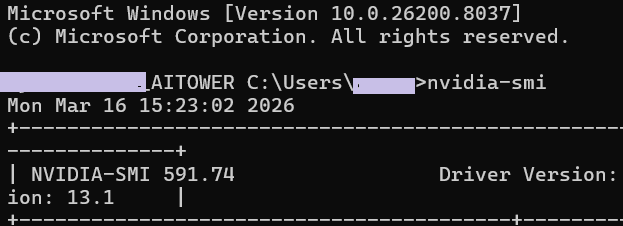
We can verify ssh connection is sucessful via any of commands, for example, the following one.
Critical Identity Details
- The Username: The
[AI_Tower_User]is often not the display name you see on the Windows lock screen. It is the system internal username (runwhoamiin the Tower’s terminal to find it). - The Credentials: If your PC is linked to a Microsoft Account, you must use your full Microsoft password, not the 4-digit or 6-digit PIN used for physical logins.
Conclusion
By combining a NAS Jump Host with SSH tunneling, we’ve built a secure, professional-grade development environment. It follows the principle of “least exposure”—the powerful AI Tower remains hidden, while you enjoy full access from anywhere in the world.
Pingback: Finally successed to access to NAS files via SSH to AI Tower(Win11) - HWSR Area